
- In Knownwell, go to Integrations Manager by clicking your account icon in the bottom-left.
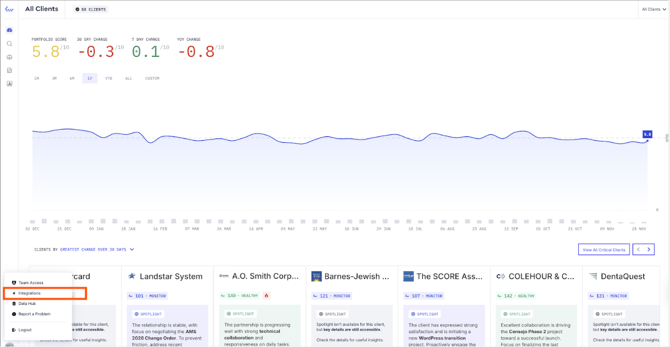
- Find Slack and click Connect.

- Click Authorize Slack. You’ll be redirected to Slack.
- In Slack, click Connect / Allow. You’ll land back in Knownwell.
- On the Configuration screen, click Save configuration.
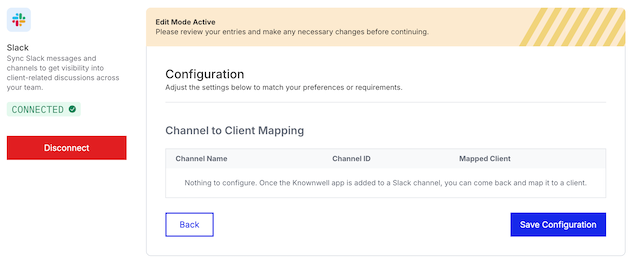
This step kicks off data ingestion in the background.
Add Knownwell to the Slack channels you want tracked
- In Slack, open the channel you want Knownwell to watch.
- Click the channel name → Integrations tab → Add apps.
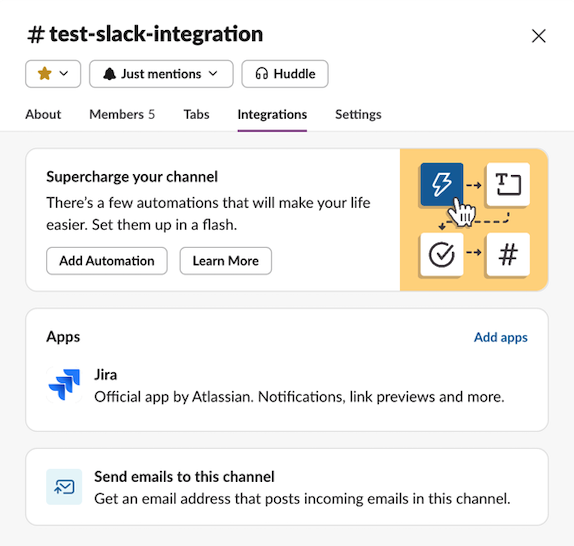
- Search for Knownwell and click Add.

In the channel, you will see a confirmation that the Knownwell app has been added, and that you need to complete one additional step to configure your client.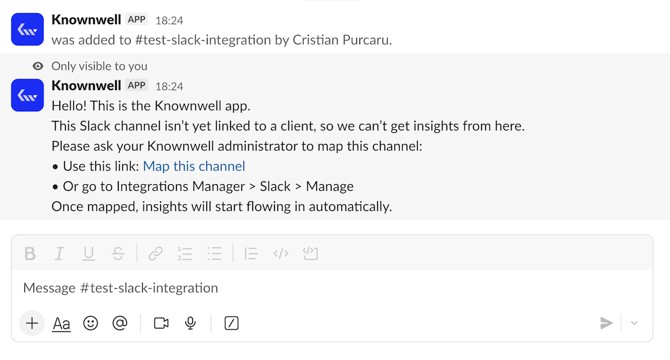
Repeat for each channel you want included.
Map channels to clients in Knownwell
- Back in Knownwell, return to Integrations Manager → Slack → Manage.

- You’ll see your connected channels. For each one, pick the right Client from the dropdown.
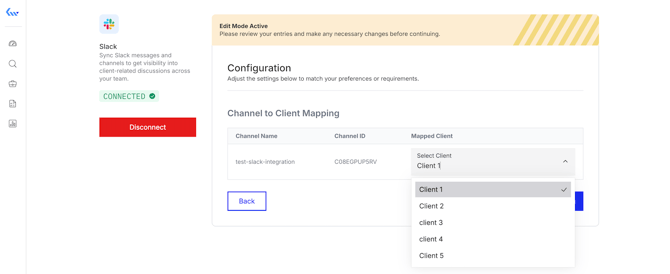
- Click Save configuration again.
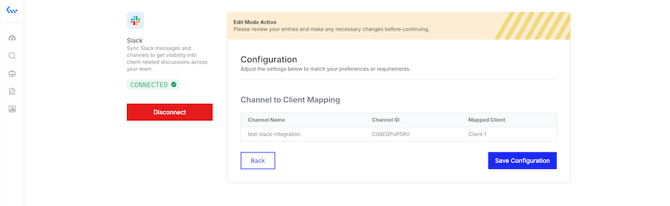
Repeat for each client you would like mapped to a channel.
What happens next
- Knownwell starts pulling users and channel info as soon as you connect Slack—no need to wait before adding the app to channels.
- Once a channel is mapped, Knownwell backfills up to 1 year of history for that channel.
- After the daily processing run, channel-to-client mapping becomes read-only, so make sure mappings are correct before that lock happens.