- Log in to Microsoft as an Admin user.
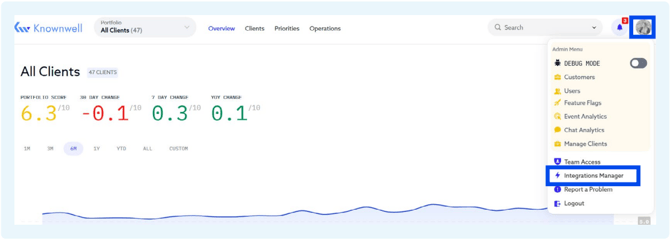
- Log in to Knownwell and navigate to the Integrations Manager by clicking your account icon in the bottom left corner and clicking “Integrations Manager.”
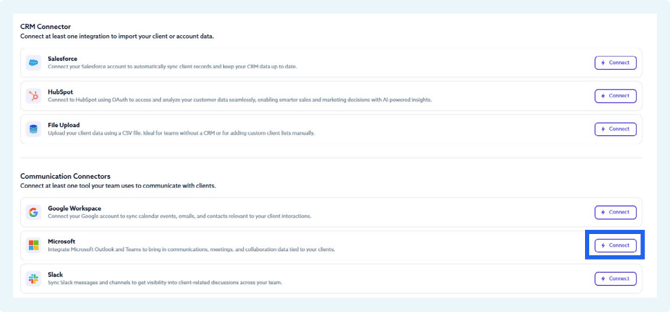
- Then, click “Connect” next to the “Microsoft” connector.
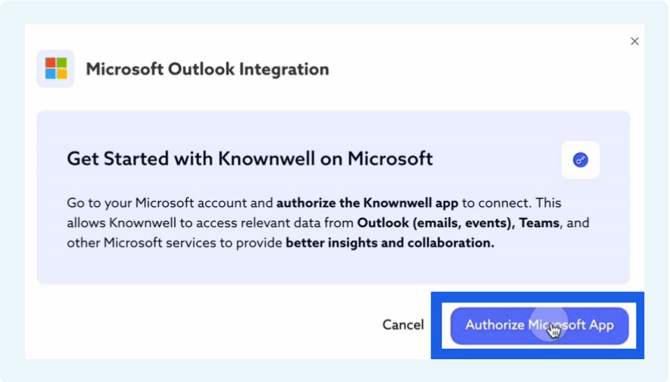
- In the popup that opens, click the “Authorize Microsoft App” button.
- A new tab will open requesting to login/ choose your Microsoft account.
- Review the permissions, then click the “Accept” button. The tab will close automatically in a few seconds.

- Return to Knownwell and select the communications you’d like us to read in the Communication Importer section below, then click “Save”.
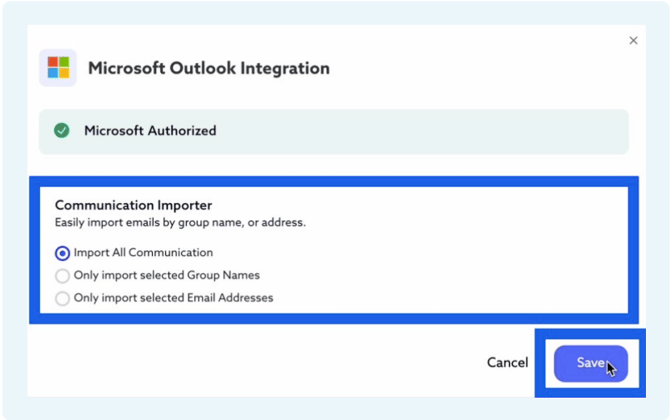
Note: For the most informative insights, we recommend including all communications. If you prefer to limit the selection, we recommend including all client-facing team members.
English
